
Agents
Your agent works in your paper.
You keep the pen.
Connect Claude Code, Codex, Cursor or any coding agent to the Vitela tab you have open. The agent reads the project, runs the check, compiles, verifies the bibliography against the public registries — and proposes changes. It never edits your text. Every proposal arrives as a revision in the margin, signed agent, and nothing changes until you accept it.
Runs on your machine · nothing leaves it · works with any MCP client
How it works
Agents talk to tools through the Model Context Protocol (MCP) — a standard way for an agent to ask a program "what can you do?" and call it. The bridge is one such program. It sits between your agent and your browser tab: every tool the agent calls runs inside the tab, where your project already is, and the answer goes back the same way. No server, no upload, no account.
Connect in three steps
1 Add the bridge to your agent
You need Node 20 or newer. There is nothing to install by hand:
npxfetches the bridge and runs it when the agent starts.One command, in the folder you work from:
claude mcp add vitela-bridge -- npx -y github:camilochs/vitela-bridgeThen start
claude. Type/mcpto see the bridge listed as connected.One command, from any folder:
codex mcp add vitela-bridge -- npx -y github:camilochs/vitela-bridgeThen start
codex.codex mcp listshows the bridge among its servers.Settings → MCP → Add new global MCP server, and paste:
{
  "mcpServers": {
    "vitela-bridge": {
      "command": "npx",
      "args": ["-y", "github:camilochs/vitela-bridge"]
    }
  }
}
Zed, Windsurf, Claude Desktop and every other MCP client take the same shape in their configuration file — a server named
vitela-bridgestarted withnpx -y github:camilochs/vitela-bridge:{ "mcpServers": { "vitela-bridge": { "command": "npx", "args": ["-y", "github:camilochs/vitela-bridge"] } } }2 Ask your agent for the code — once
The bridge keeps one six-digit pairing code per machine. Ask the agent "what is the Vitela pairing code?" — it reads it from the bridge and tells you, together with a link that pairs the tab by itself when you open it. You will not need it again: Vitela remembers the code in your browser.
3 Pair the tab
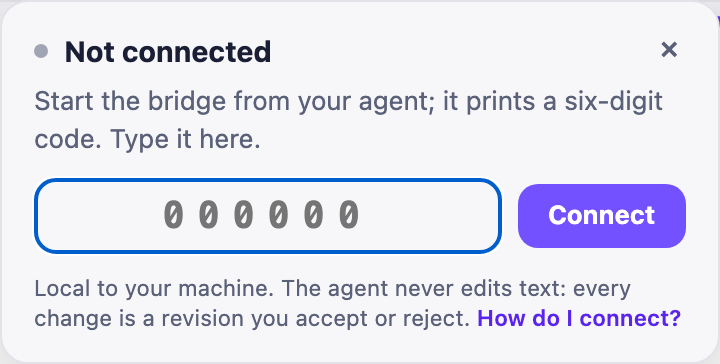
In Vitela, press Agent in the header and type the code — or just open the link. The card says Connected and closes by itself. From here the agent can see the open project. Next time, pressing Agent connects on its own; Disconnect ends it, and a corner notice tells you if the connection drops.
What the agent can do
Read
List your projects and files, open one, read any source file. Nothing more than what the tab shows you.
Check and compile
Run the ExactTeX check — diagnostics, coverage, bibliography state — and compile to PDF, in the tab, with the same engine you use.
Verify
List the document's external claims and verify them against the public registries. The dated record lands in the project, and the compiler replays it.
Propose — never edit
An addition, a deletion or a substitution arrives as a revision in your margin, signed agent. Accept, reject or reply. The text changes only when you say so.
Questions
Does my paper leave my machine?
No. The bridge listens on your own computer (127.0.0.1) and the tab connects to it there. What your agent sends to its own model is the agent's business, the same as when it reads any file on your disk — the bridge adds no channel of its own.
Can the agent change my text without me noticing?
No. The bridge has no tool that writes text. Its only way to change a document is a revision, and a revision is visible in the margin and inert until you accept it.
The card says "Code refused".
The bridge on this machine has a different code — it was reset, or this is another computer's code. Ask the agent for the current one; Vitela will remember it.
The card says "Nothing answered".
The bridge is not running, or it listens on another port. Check that your agent lists vitela-bridge as a connected MCP server; the default port is 4329.
Does it work with the published site, or only locally?
Both. The bridge is local either way: the page at vitela.artificialfallibility.com connects to the bridge on your machine. Because a published page is reaching into your computer, Chrome asks once whether this site may access your local network — allow it, and the pairing goes through. We have verified this in Chrome; if your browser blocks the connection with no prompt, run Vitela locally or use a Chrome-based browser for the pairing.